Troubleshooting
Applying a patch
Note: This requires using the command line terminal. Windows users may first need to enable the SSH feature.
-
Make sure that you are connected to the
CallOfNaturehotspot. -
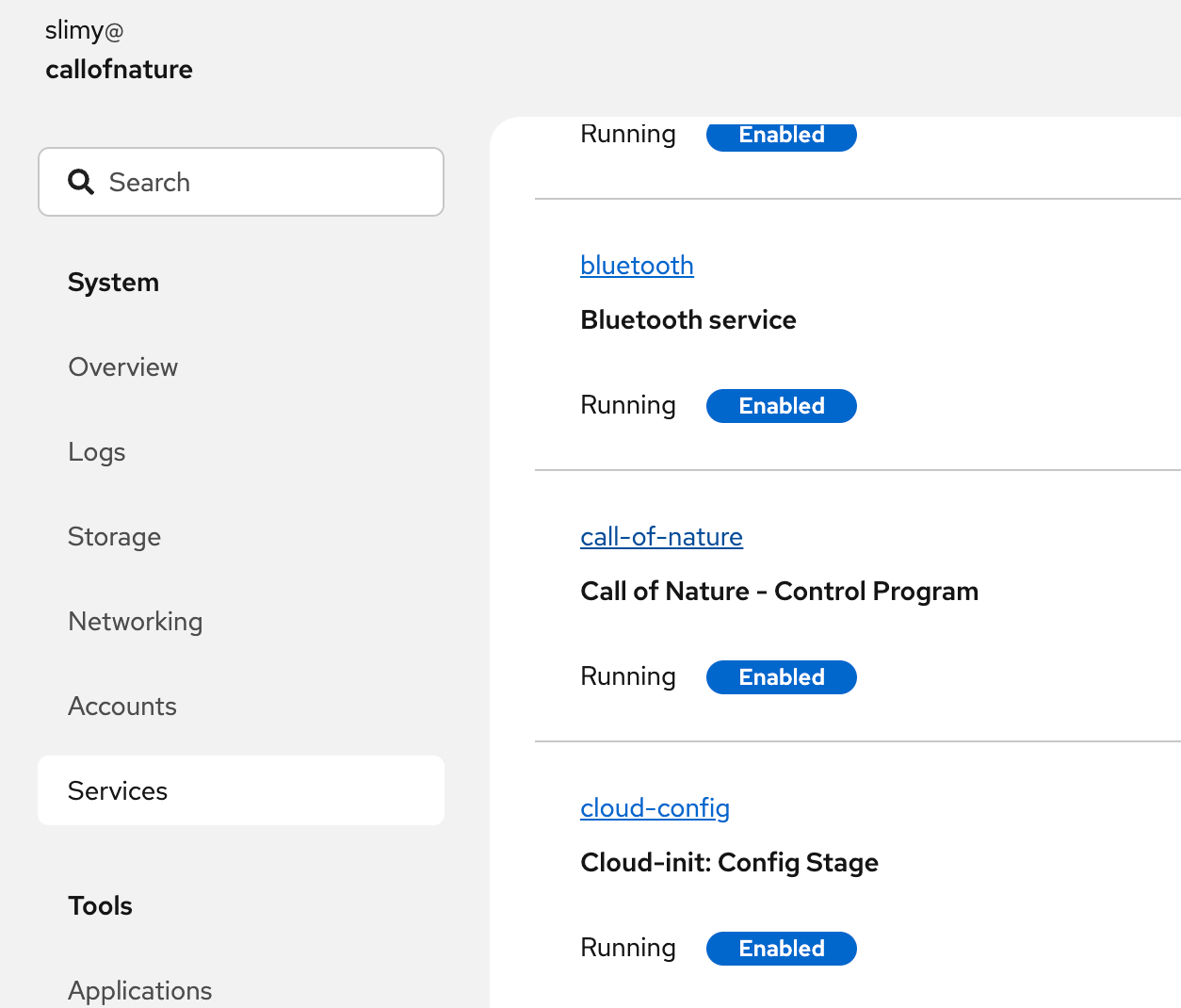
Go to the system services page, scroll down to
call-of-nature, then click on the service.
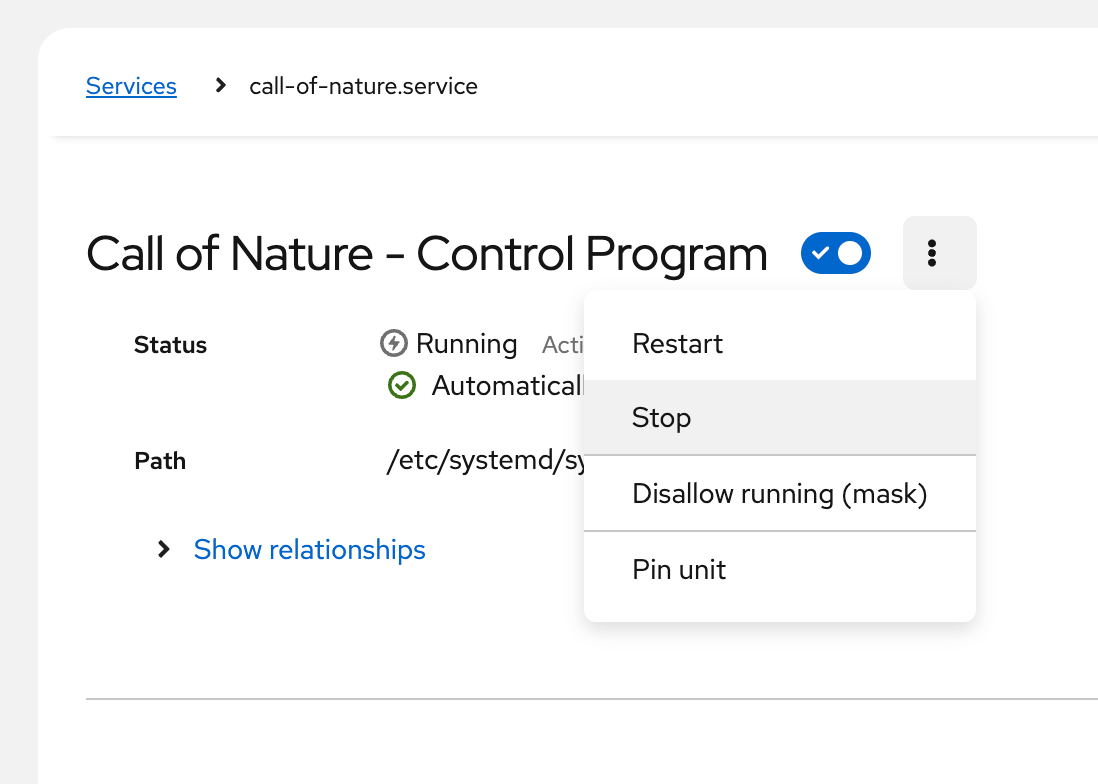
- On that service page, click the 3 dots and click "Stop"
-
Get the patched executable
call-of-nature-serverfrom the developer and extract it to a folder. -
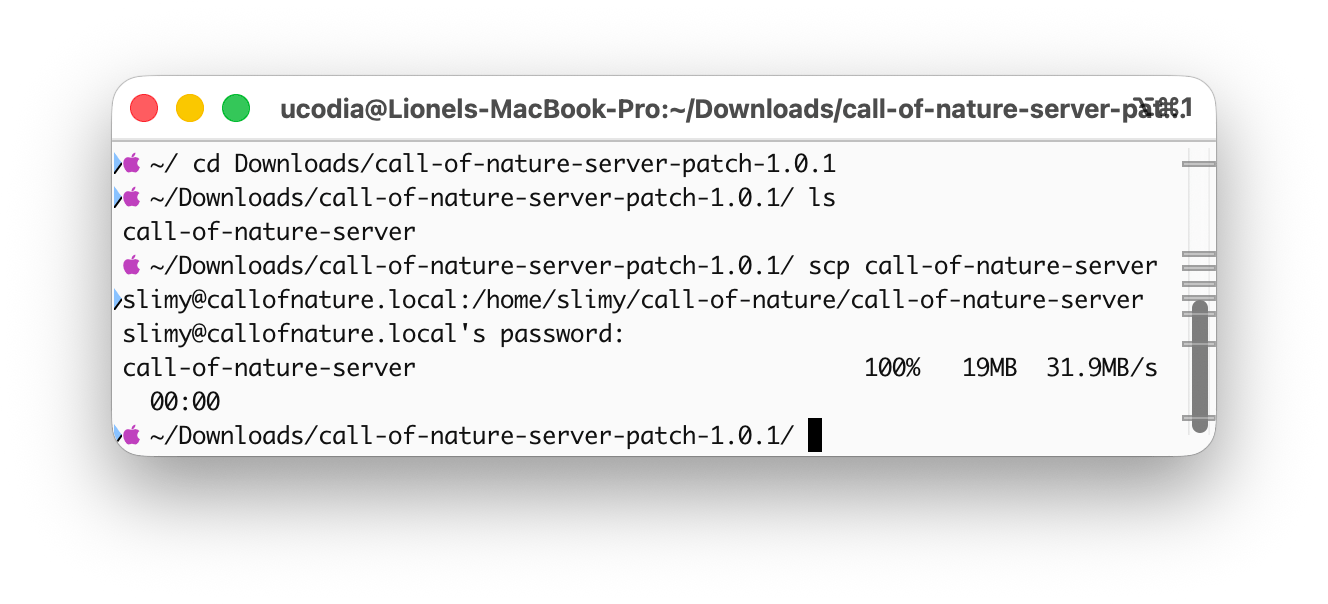
Open the terminal navigate into that folder using
cd. List the folder to verify you can see the executable withls(macOS) ordir(Windows). -
Then execute the following command; you will be prompted for the user password (password:
NatureIsCalling).
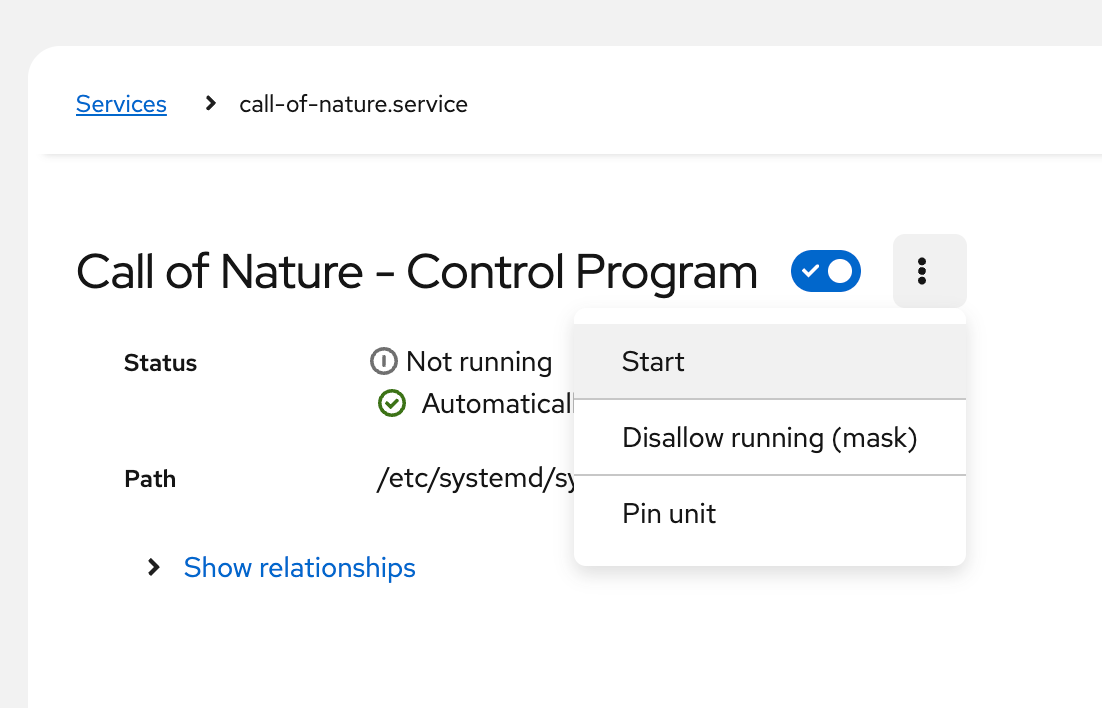
- Go back to the service page, click the 3 dots and click "Start"
- Go to the control panel server page and confirm that you see the new patched version.
Allowing more connections to the hotspot
By default the Raspberry Pi 5 can accept ~8 connections to its wifi hotspot. To push that limit to ~18 connections install the minimal wifi firmware by following these instructions.
-
Make sure that you are connected to the
CallOfNaturehotspot. -
Go to the system terminal page and enter the following commands.
cd /usr/lib/firmware/brcm/
sudo ln -sf ../cypress/cyfmac43455-sdio.bin brcmfmac43455-sdio.raspberrypi,5-model-b.bin.bak
sudo ln -sf ../cypress/cyfmac43455-sdio-minimal.bin brcmfmac43455-sdio.raspberrypi,5-model-b.bin
sudo reboot
This will reboot the Rapsberry Pi with the new firmware.
Reverting back to the original firmware
- To revert back to the regular firmware, enter the following commands.
cd /usr/lib/firmware/brcm/
sudo ln -sf ../cypress/cyfmac43455-sdio.bin brcmfmac43455-sdio.raspberrypi,5-model-b.bin
sudo reboot
This will reboot the Raspberry Pi once again with the default firmware.