Setup Devices
Input devices
This installation uses multiple Pocket Scion MIDI devices as input for interaction.
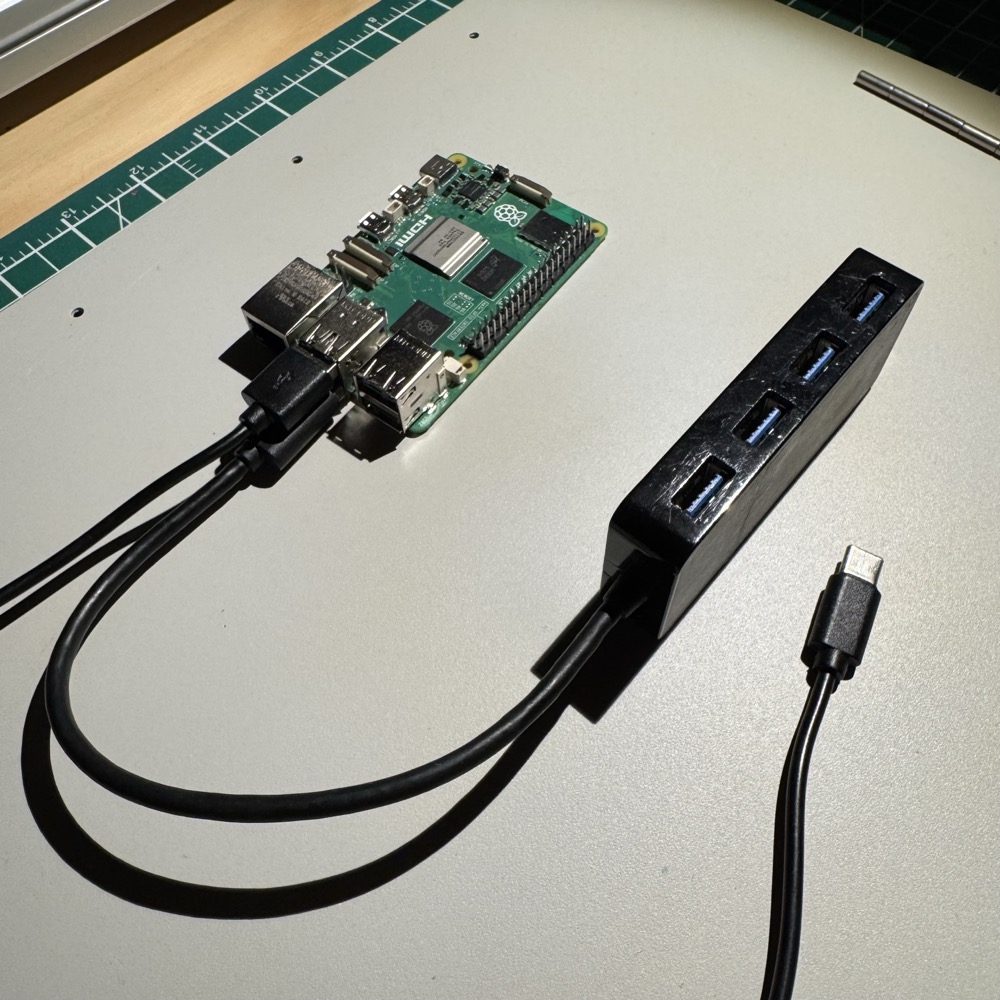
Connect the Pocket Scions to the USB hub and connect everything to the Raspberry Pi on the blue USB ports, which is the column of ports on the left side, as pictured on the image below.
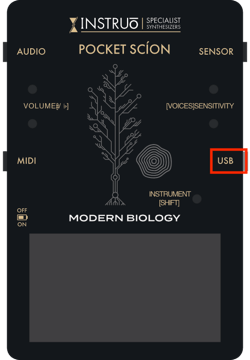
Each Pocket Scion needs to be connected using the USB port on the right side of the device (not the MIDI port).
Output devices
LED strip
This installation controls a Adafruit NeoPixel LED strip as a feedback for interactions.
By default it supports a strip of 5 pixels which you will need to solder as follows. Make sure to follow the direction of the arrows.
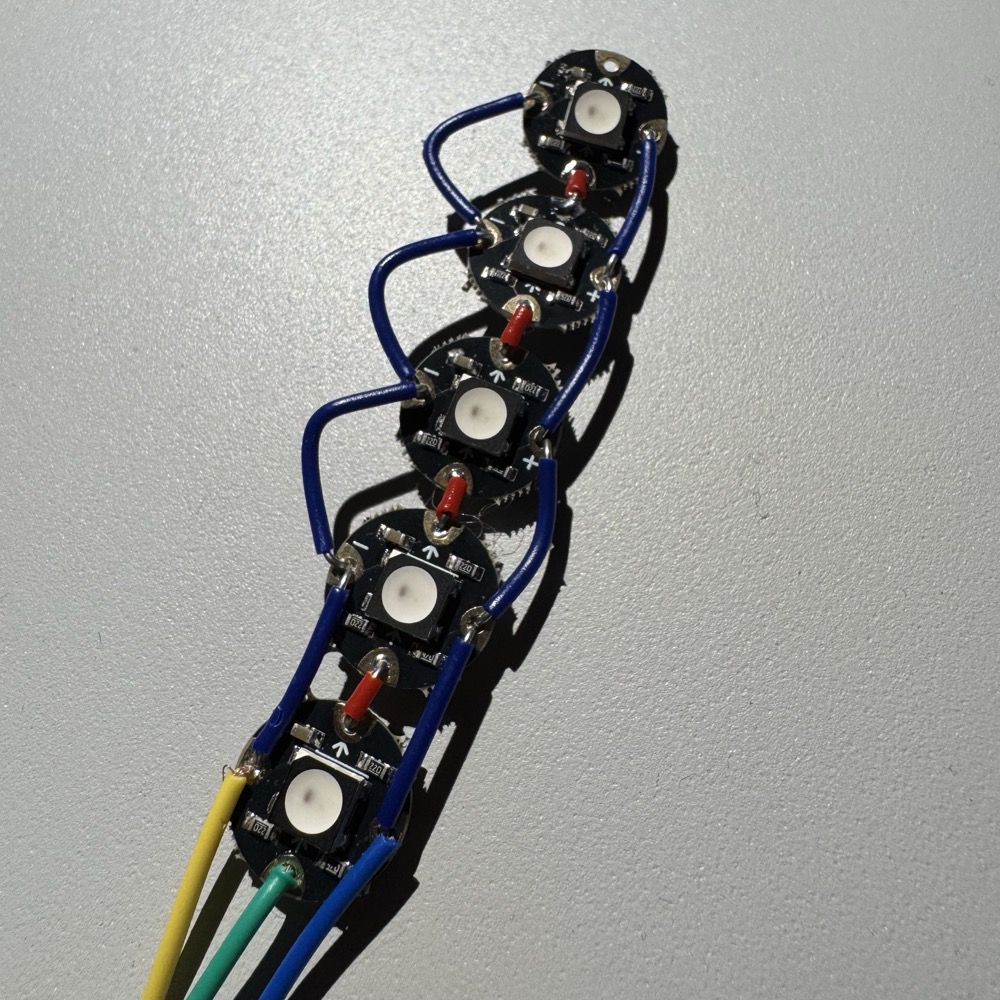
You will need to connect the +, - and data line using female Dupont connectors as follows.
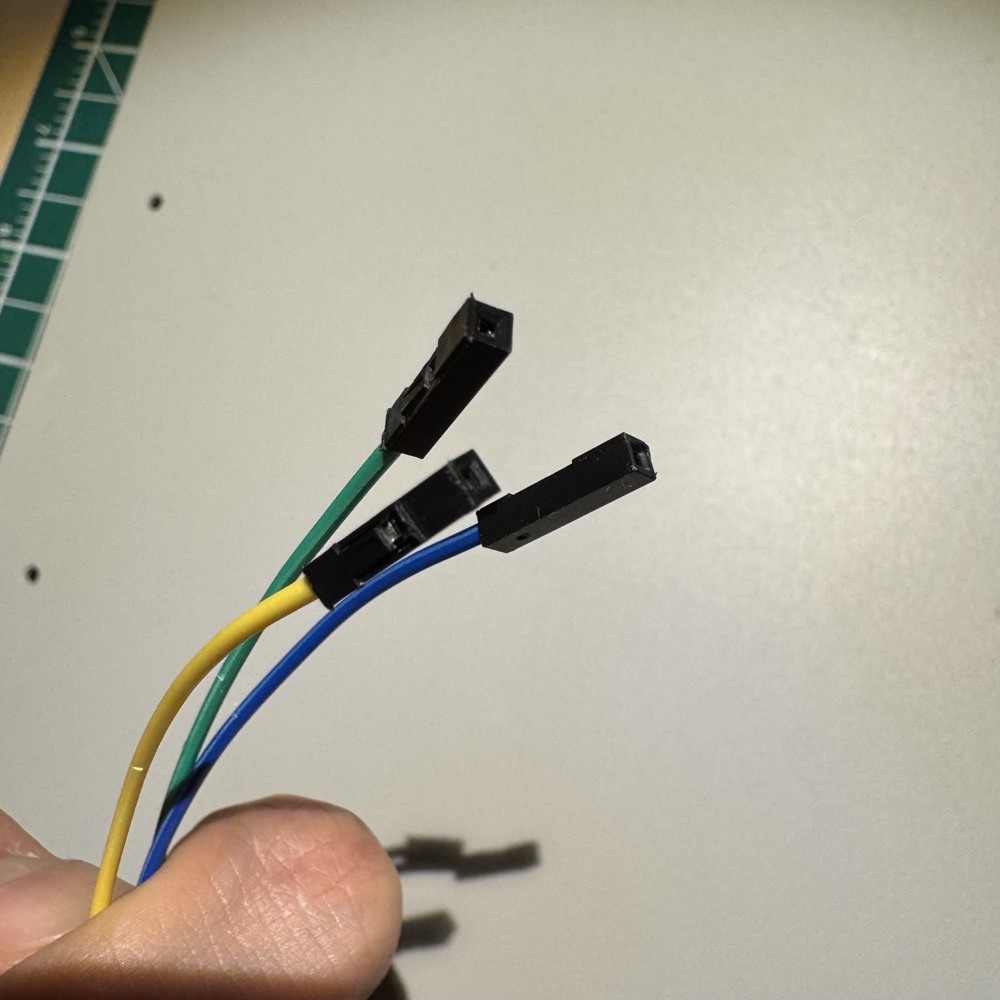
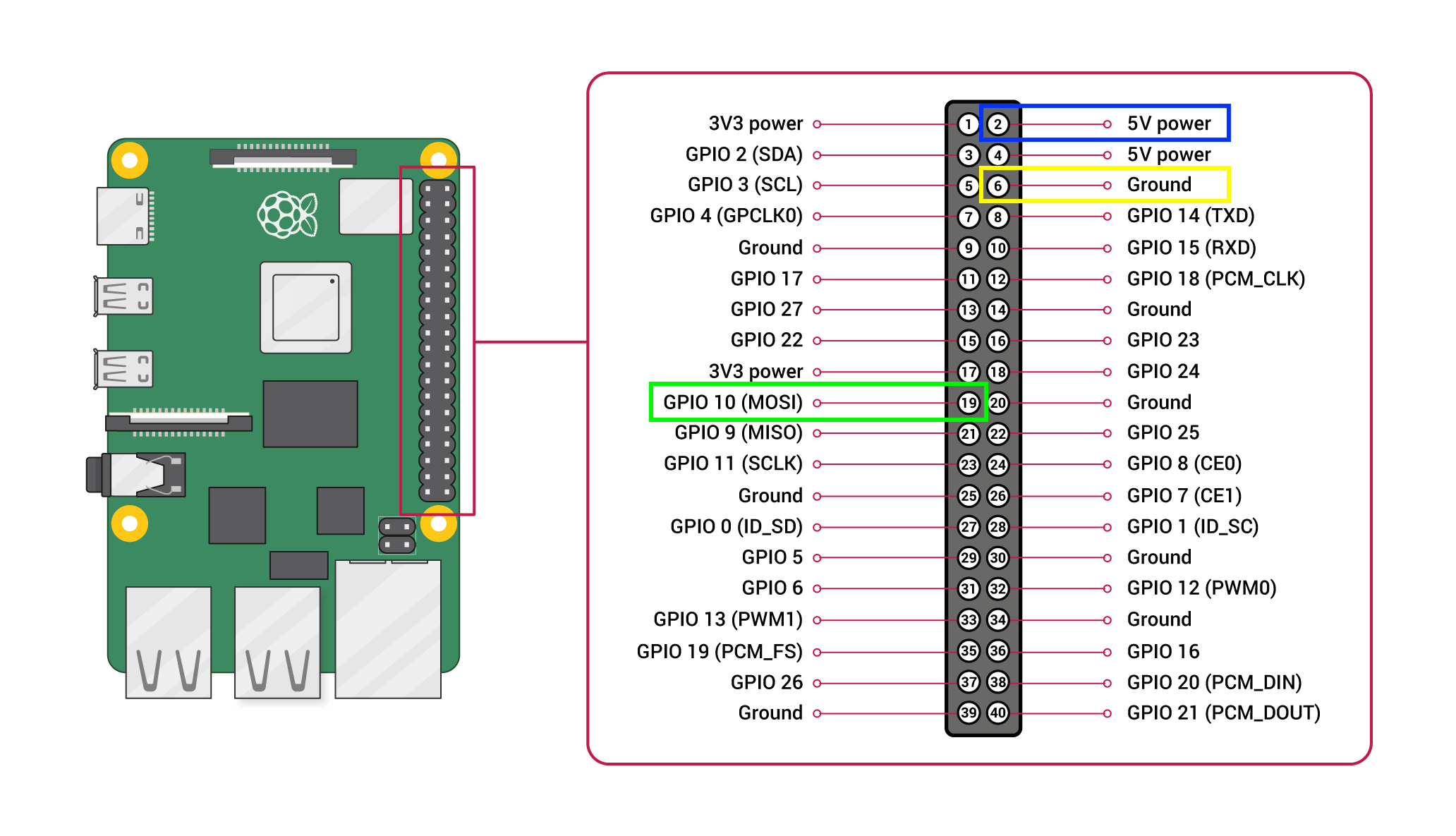
And finally connect the + line to 5V (pin 2), the - line to ground (pin 6) and the data line to the GPIO 10 (pin 19) as follows.
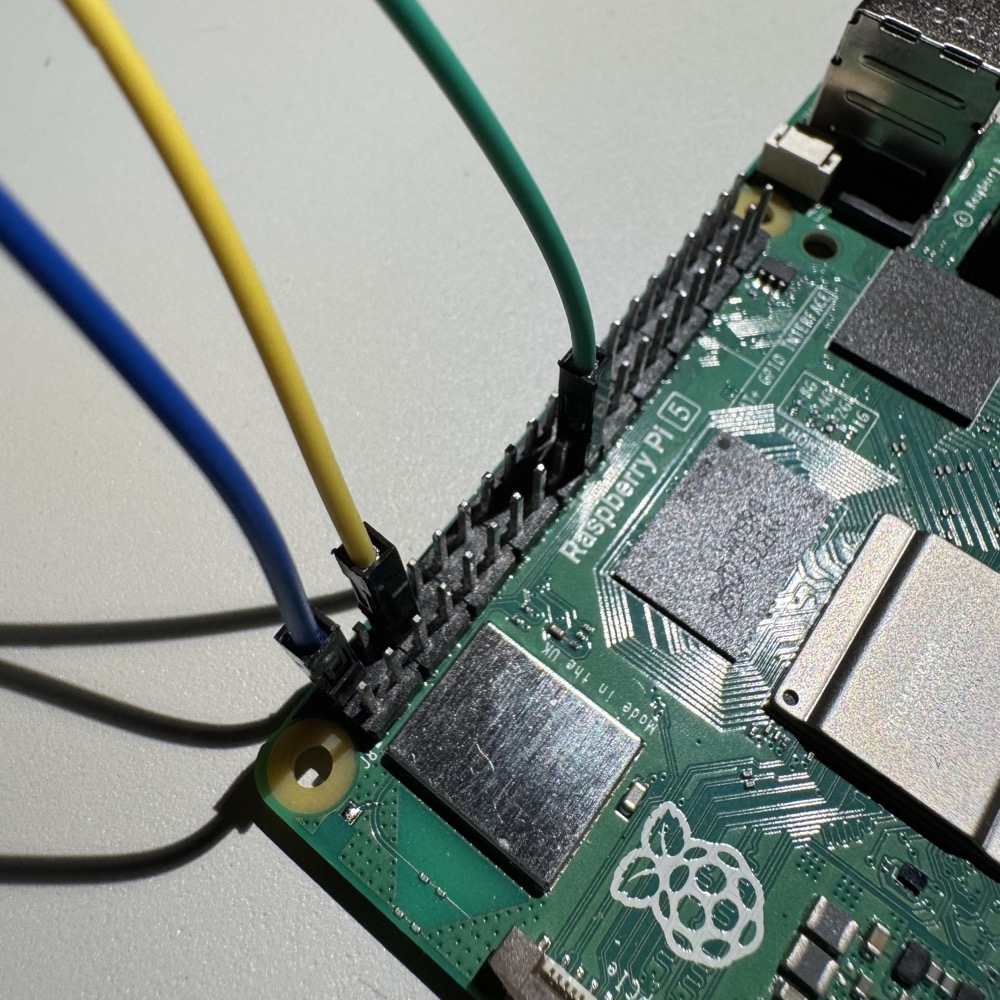
Raspberry Pi pinout with color coded from reference images.
Connected light bulbs
This installation controls a set of WiZ connected light bulb as a feedback for interactions.
Each light bulb needs to be connected manually one by one to the Raspberry Pi hotspot by using the official WiZ smartphone app:
When you first start the WiZ app you must grant permission to the app to find devices on local network and bluetooth for a easy pairing of the bulb. You do not need to create a WiZ account, you can skip those steps.
When you first plug a bulb it should start pulsing blue (then pink after a while), which means it is ready to pair. If your phone is close enough to the bulb, you should see a "Device found" message, tap it to start the pairing process. During the setup you will need to connect it to the hotspot CallOfNature with password NatureIsCalling. In the following steps, make sure to set the "Power on" mode to "Last status" and to set both the "Fade in" and "Fade out" to 0.
From there you should be able to send a test blink to each bulb to validate the pairing process from the dedicated control panel at http://callofnature.local:8000/bulbs.html.
If a bulb is unresponsive or does not show in the control panel, you may have to reset it but powering it on and off 5 times until pulses blue or pink again, then start the pairing process again.